
How to integrate Zendesk to improve support ticket management
It is possible to connect Qapla’ with your Zendesk to view tracking and order details directly within your Zendesk support platform.
The integration allows:
- Quick lookup: Display order and shipping information associated with the customer who opens a ticket on Zendesk.
- Real-time tracking: Display shipping progress directly in the Zendesk support interface.
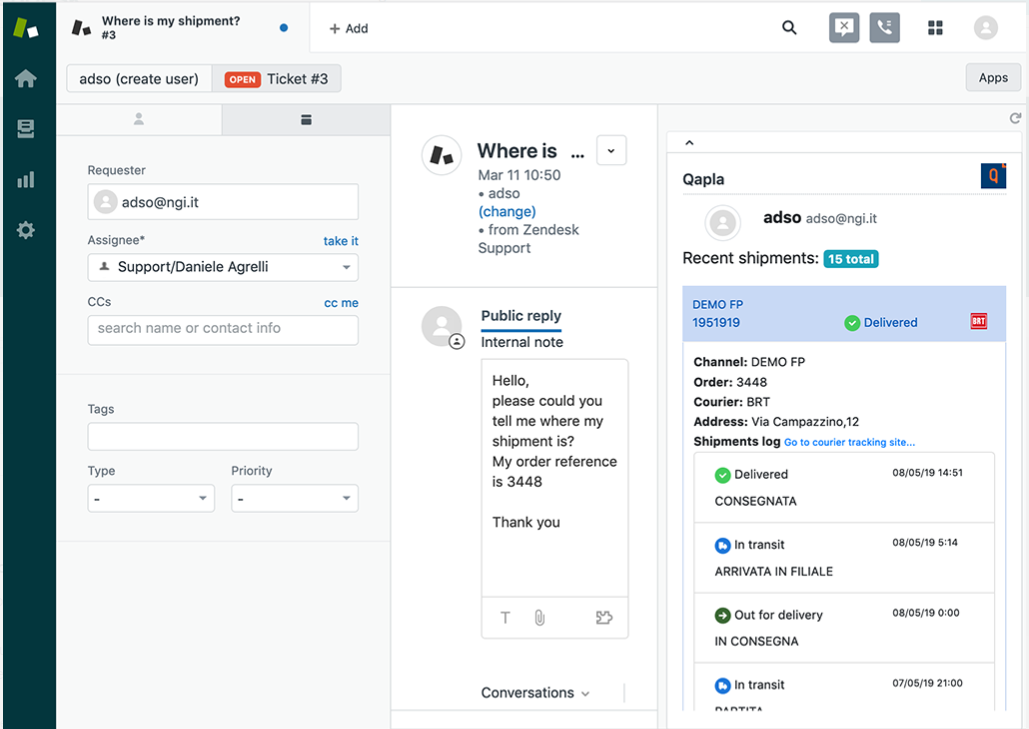
To make this connection it is necessary to follow the steps below:
1. Download the APP
Download the official APP (File Zip) directly from Zendesk by clicking on this link:
App Qapla’ – Zendesk
2. Log-in to your Zendesk
Log-in to your Zendesk account.
Go to the “Admin” section on the left-hand side of the screen.
In the APP area click on “APP Management” and then on “Upload private app”.
3. Upload the APP
Please enter the APP name which will be displayed in the app list on Zendesk, for example Qapla’.
Upload the File Zip previously downloaded by clicking on “Choose File”, then click on “Upload”.
4. Agree to Terms of Use of Zendesk Marketplace
Accept Terms of Use by clicking on “Upload”.
5. Enter the API Key Token
In order to end the installation you have to enter the API Key that is on Qapla’ going on the gear icon at the top right of Qapla’ control panel and click on: External Plugins > Zendesk
Enter the Key in the “Token API Key” field and click on “Install”.
6. Enable the channel on Qapla’
You have to select the channel to connect to Zendesk APP.
Please go on the gear icon at the top right of Qapla’ panel and click on: External Plugins > Zendesk
Under “Channel Configurations” select the desired channel or channels/s.