
PrintNode
PrintNode is a cloud printing service that allows you to connect your computers or servers directly to your warehouse printers.
Thanks to this integration, once the label is generated via API, the document is automatically sent to the correct printer without manual steps.
Fundamental Requirements
The PrintNode integration is designed exclusively for those using Qapla’s createLabel APIs. It is not designed for those who generate labels manually from the Control Panel.
Installation and Configuration
Activation requires collaboration between our Customer Care and your technical team.
Handled by Qapla’
Step 1: PrintNode Account Activation
Our support will create:
- Your Account on PrintNode and will provide you with the login credentials: Email and Password.
- Your API Key to be set on Qapla’
Handled by the Customer
Step 2: Installation
- Download the PrintNode software from the official website: https://www.printnode.com/en/download
- Install the program on the computer or server to which the printer is physically connected.
- Log in with the credentials provided by Qapla’ Customer Care (step 1):

- Important: Ensure the software is set to start automatically when the computer restarts.
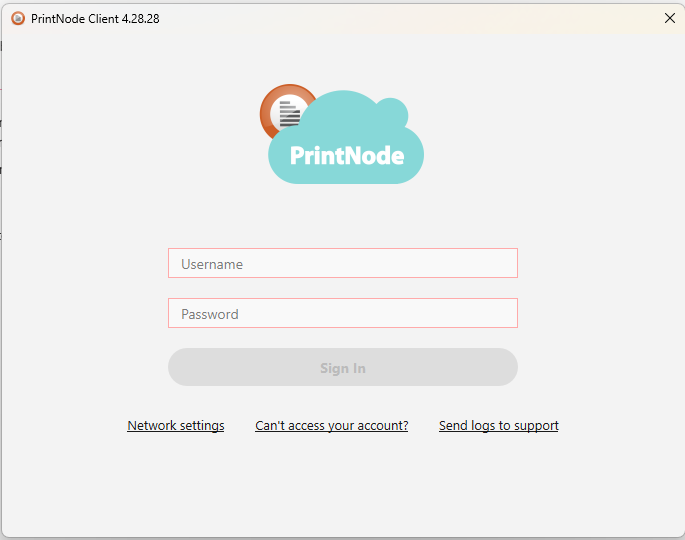
Handled by the Customer
Step 3: API Key and Printers Configuration
- Go to your Qapla’ account and configure the API Key provided by Customer Care (step 1), go to the section: Channels > Labels > Printers > PrintNode Configuration > PrintNode API KEY.
- Additional options: Reprint labels generated with “createLabel” and PrintNode
- Reprint on the same printer specified with “createLabel”
- Always reprint on the “default” printer
- Do not reprint
- Click on Update: the list of your online printers will appear.
- Identifier field (numeric): key element that allows your system to tell Qapla’ which physical printer the label should come out of.
The value to be configured must be entirely retrieved on the customer side; if you do not know the data, ask your technical team internally.
Each printer must have a unique identifier (e.g., Printer A: 12345678, Printer B: 98765432)
Once these steps are completed, the installation and configuration are finished.
How it Works
Qapla’ does not communicate directly with your printer, but sends the command to PrintNode via API.
The PrintNode client installed on your computer receives the document and instantly sends it to the connected printer.
Usage via createLabel API
To print automatically, you must add the following parameters in the API request:
- printNodePrinterID: enter the numeric identifier you configured in the Qapla’ panel.
- forceReprint: set it to 1 if you need to reprint an already generated label.
Troubleshooting
If labels are not printed despite the order being correctly transmitted, follow these checks:
- Verify Online Status: in the Qapla’ panel (Channel Settings > Labels), check that the printer is “Online”.
- Check that PrintNode is active: ensure the PrintNode icon is visible in the taskbar at the bottom right.
- open PrintNode and verify in the Account tab that you are connected.
- in the Printers tab, check that the printer status is “Online”.
- check the Logs tab for any error messages.
- Incorrect Identifier: verify that the value passed in the printNodePrinterID API field corresponds exactly to the one entered in the Qapla’ configuration.
- Quick Restart: if everything seems correct but it does not print, try turning both the printer and the PrintNode application off and on again.
Need help?If you need assistance, contact Qapla’s Customer Care at support@qapla.it