
Connect Commercelayer with Qapla’
In order to connect Commercelayer with Qapla’, you have to make the following steps:
1. Obtain the access data
The following access data are needed for the connection:
-
- URL
- Client ID
- Client Secret
- Scope
2. Enter the data on Qapla’
Complete the set-up on Qapla’ from Settings > [Channel Name] > E-commerce, select the platform and enter the credentials.
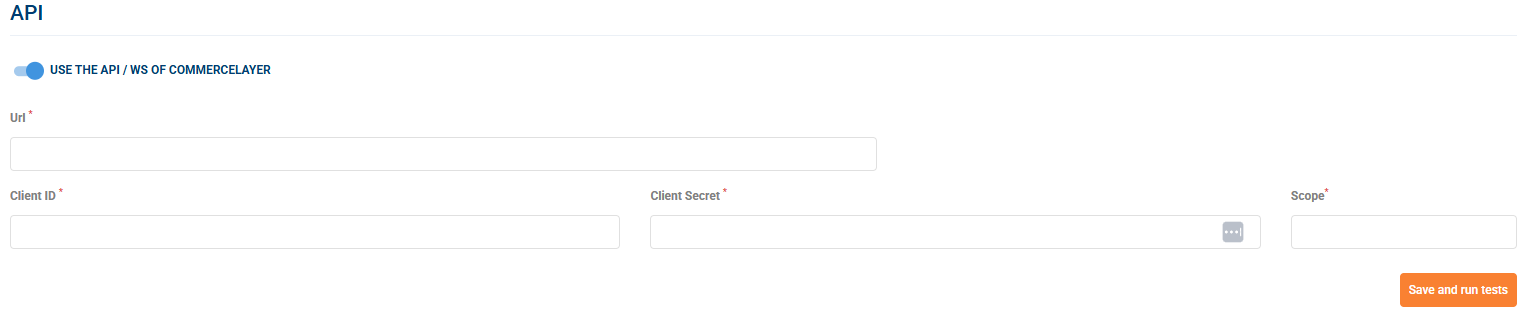
After entering, click on «Save and run test».
3. Enabling order import
To enable order import, go to: Settings > Channels > [Channel Name] > Configure > Imports > Orders
Select the desired import mode:
- Automatic: Qapla’ will query your platform every hour (on the hour, e.g., 9:00, 10:00, 11:00, etc.) to import new orders and update existing ones.
- Manual: you can start the import at any time from the Labels section, selecting CommerceLayer and clicking Manual Import.
Excluded statuses from import
You can exclude specific order statuses from import (in addition to those excluded by default), customizing the workflow based on your operational needs.
Advanced Settings Inside the “Imports > Orders” section you can activate the following options:
- Import product images
- Field to import as order reference: allows selecting which CommerceLayer field to use as Order Reference in Qapla’. The available options are:
- “number” attribute of the “shipment” object
- “number” attribute of the “order” object
- “reference” attribute of the “shipment” object
- “reference” attribute of the “order” object
- Cash on delivery management. Since in CommerceLayer there is no default payment method for cash on delivery, it is possible to force the recognition of a COD order by configuring the following two fields. If both fields are left empty, Qapla’ will use the default values. Currently, it is possible to set only one value per field.
- Payment method type for Cash on Delivery orders: example
wire_transfer - Payment method reference for Cash on Delivery orders: example
cash_on_delivery
- Payment method type for Cash on Delivery orders: example
Set default weight
Set a default weight to apply to imported orders.
Set default number of parcels
Define a default number of parcels for each imported order.
4. Update the order on CommerceLayer
To enable automatic updates on CommerceLayer, go to:
Settings > Channels > [Channel Name] > Configure > Updates > E-commerce
Enable the available update options:
- Do not update the order
- Update the order to “Shipped” when the shipment becomes trackable.
- Update the order to “Shipped” when the goods are physically in the hands of the carrier (statuses recognized by Qapla’: Departed, In transit, Out for delivery).
- Update shipments on CommerceLayer by inserting the Tracking Number.
Not working?
Qapla’ uses the official CommerceLayer APIs (Web Services).
If it doesn’t work, we recommend requesting verification from the administrator who manages your site on CommerceLayer.