
Introduction
Q’uotes is the feature of Qapla’ that allows you to request courier shipping rates to choose the most suitable option based on the order characteristics, showing a comparison of rates from the different couriers and services active on the account.
Currently, two rate comparison modes are available:
- The Automatic mode, managed through the couriers’ systems (API), based on the sender, recipient, weight, and parcel dimensions.
(If you use Qapla’ APIs, you can check the technical documentation here).
The couriers managed via API are: Amazon Shipping, DHL Express, FEDEX, GLS-ITA, Liccardi, TNT-ITA, and UPS. - The Manual mode allows for the manual entry of rates and specifications for couriers and services.
Note: The configuration of each courier’s price lists must be performed by the customer to ensure full control over the accuracy and consistency of the data entered based on their private rate agreements with the carrier.
N.B. To use this feature, orders MUST NOT be previously pre-assigned to the various couriers.
To use the feature, enable it from your Qapla’ account
Before enabling the price list feature, verify that it is included in your plan and that the courier is active for generation on Qapla’. If it is not active, you can configure it independently or contact our customer care (support@qapla.it) for configurations subject to restrictions.
You can enable automatic comparison of rates from the section Channels [Channel Name] > Couriers [Choose courier] > Price List
by setting Rates source to “Automatic”:
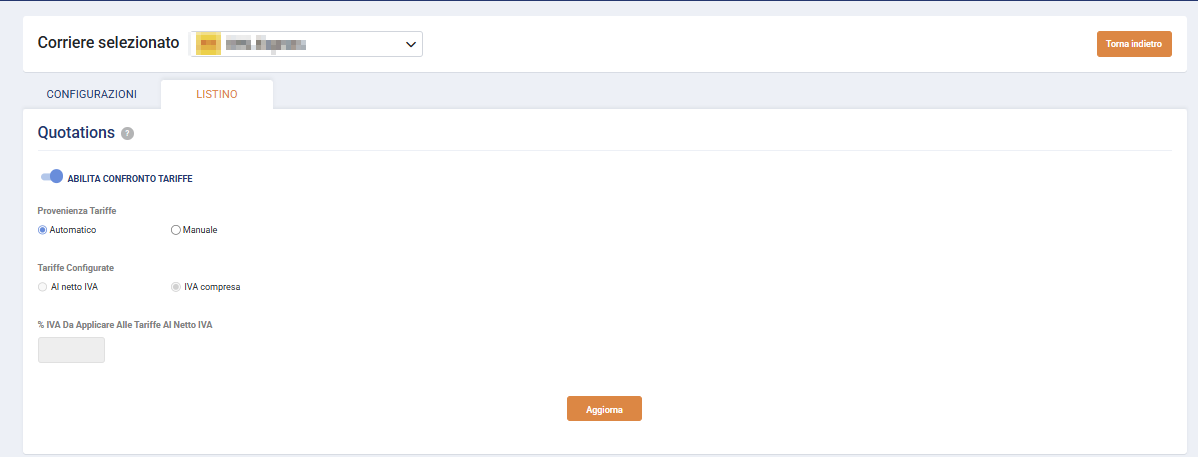
Otherwise, you can upload your rates manually
You can proceed with uploading rates by following these steps:
- Access the courier configuration section: Channels [Channel name] > Couriers [Choose courier] > Price List
- Enable rate comparison and click “Update”
- Select Rates source > Manual.
- Indicate the option relative to VAT on rates, choosing between:
- Excluding VAT, if chosen it is necessary to specify the % value for VAT
- Including VAT

Settings for each service
In the Services section, the national and international services enabled in the courier configuration will be displayed.
On each of these, it is possible to configure the zone and the rate by following these steps:
1. ZONES. Select a service by clicking “Configure rate” and create zones, including all those specified in the contract for which specific rates are valid. It will be necessary to indicate a name, average delivery days, country/countries, and any included or excluded ZIP codes.
Afterward, click on the gear icon at the end of the row of the set zone to access the rate settings based on weight ranges. You can also enable and enter increments for excess weight.


2. SURCHARGES AND LIMITS.
There are two “Surcharges and Limits” Tabs:
– Surcharges and limits (without padlock): refers to the service.

– Surcharges and limits (with padlock): refers to the zone as there might be special contracts that provide specific surcharges and limits for certain zones. To access this configuration, you must click on the gear icon at the end of the created zone configuration:


On both “Surcharges and limits” tabs, you will find the parameters usually present in a courier contract, either as a percentage or a fixed or unit value (€).
-
- Surcharges (*)
- Fuel surcharge
- Insurance
- Cash on Delivery (COD)
- Fixed
- Surcharges (*)
-
- Standard Measurements
- Maximum Measurements (**)
- General Limits
- Volumetric weight coefficient
- Multi-parcel management
- Maximum number of parcels (max 99)
- Maximum weight per single parcel
- Maximum volume per single parcel

(*) If both percentage and fixed value are declared, the system will apply the higher value to the total rate.
(**) If the maximum value exceeds the one entered, the courier will be automatically excluded.
Once the configurations are done, you will be able to view a table of the zones and surcharges applied:
- If the padlock is unlocked, it indicates that there are specific surcharge and limit definitions for that zone.
- If the padlock is closed, it indicates that the zone has no particularities and therefore takes into account the general surcharges and limits of the service.

N.B. Currently, the feature does not include calculations via the following variables: Delivery Options, Dangerous Goods, and Pickup Points (PUDO).
Import rate configuration: import zone from another service
It is possible to import the configuration of zones and rates directly from another channel, courier, or service.
- Click the “Import zone from another service” button
- Select where the parameter is located (channel, courier, service)
- Select the zone and further details to import.

Price List Upload from CSV
You can export a preset template, fill it out manually, and re-upload it to the platform simply and quickly.
- Click on “Import from CSV“
- Download the sample file
- Subsequently select your filled-out file to import it
NOTE: CSV import will overwrite all previously defined weight ranges.

Need help?If you need assistance, contact Qapla’s Customer Care at support@qapla.it