
Connecting TikTok Shop with Qapla’
To correctly connect and configure the TikTok Shop marketplace on Qapla’, follow the steps below.
NOTE: If the Marketplace module is not included in your plan, purchase it from the store or add it to your account.
1. Marketplace selection
Log in to your Qapla’ account, and go to Channels > [Channel Name] > Marketplace.
Choose TikTok Shop, and click on «Select» at the bottom.
2. General Configuration
Access the TikTok Shop channel settings on Qapla’ and fill in the fields as follows:
- Active: Check this box to enable the automatic import of orders from TikTok Shop to Qapla’.
- Update: Check this box to send shipment information (tracking number and courier) to the marketplace once the order is handled and dispatched on Qapla’.
- Import Weight: Enable this option if you wish to import item weights directly from the TikTok Shop order.
- Import Images: Enable this option to import product images present in the order.
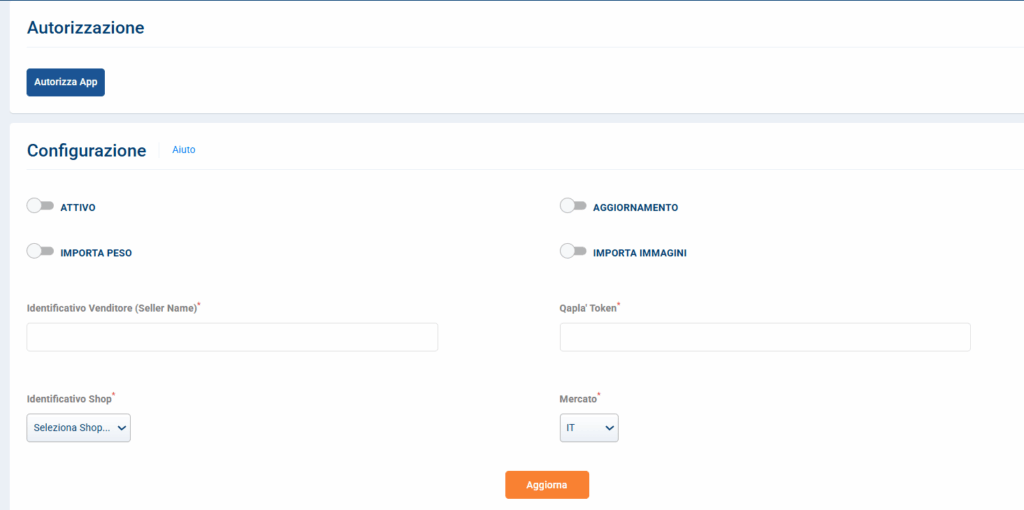
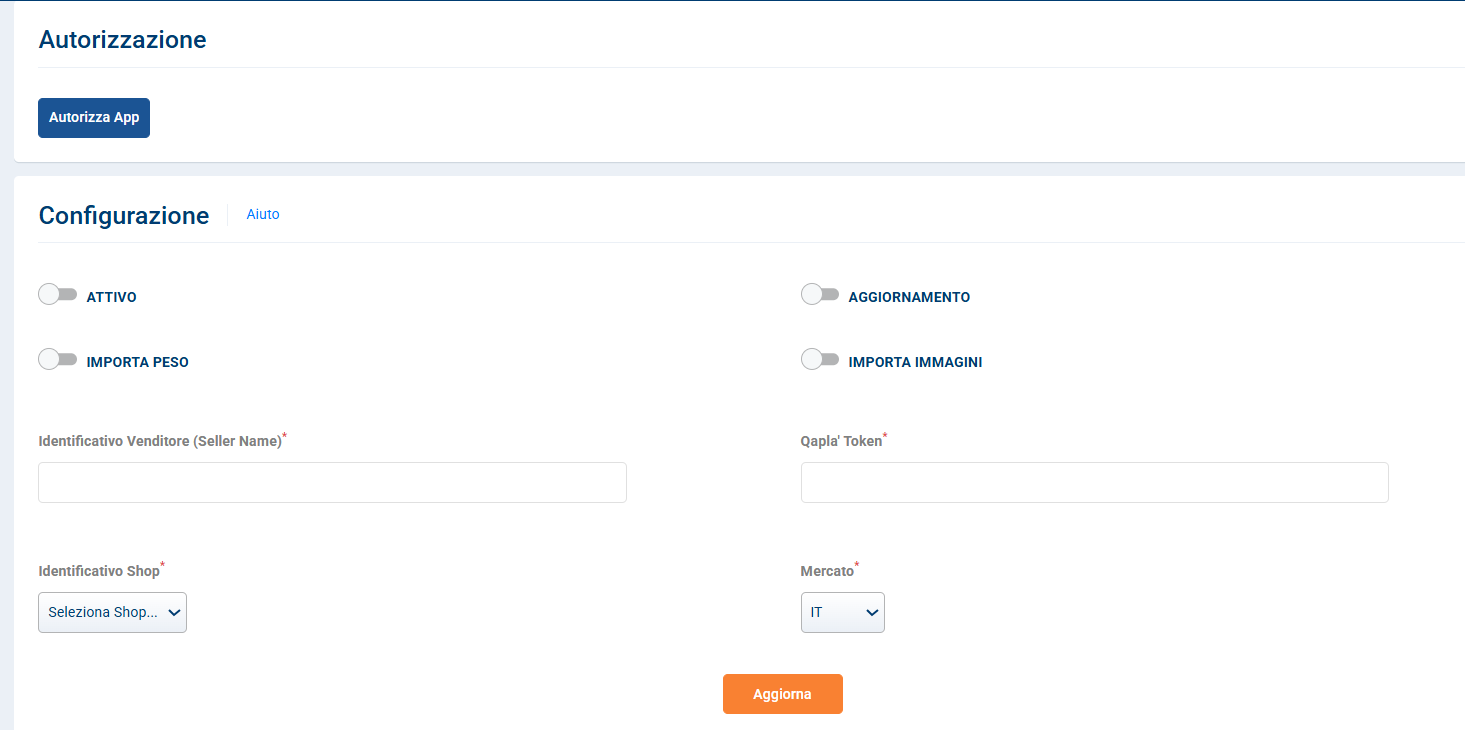
3. Authorization and Connection
To allow Qapla’ to communicate with your store, you must authorize the application:
- Click on the Authorize App button.
- You will be redirected to the TikTok Shop Seller Central login page.
- Enter your login credentials.
- Report the seller name and the token on Qapla’.
- Confirm the authorization/installation of the Qapla’ app.
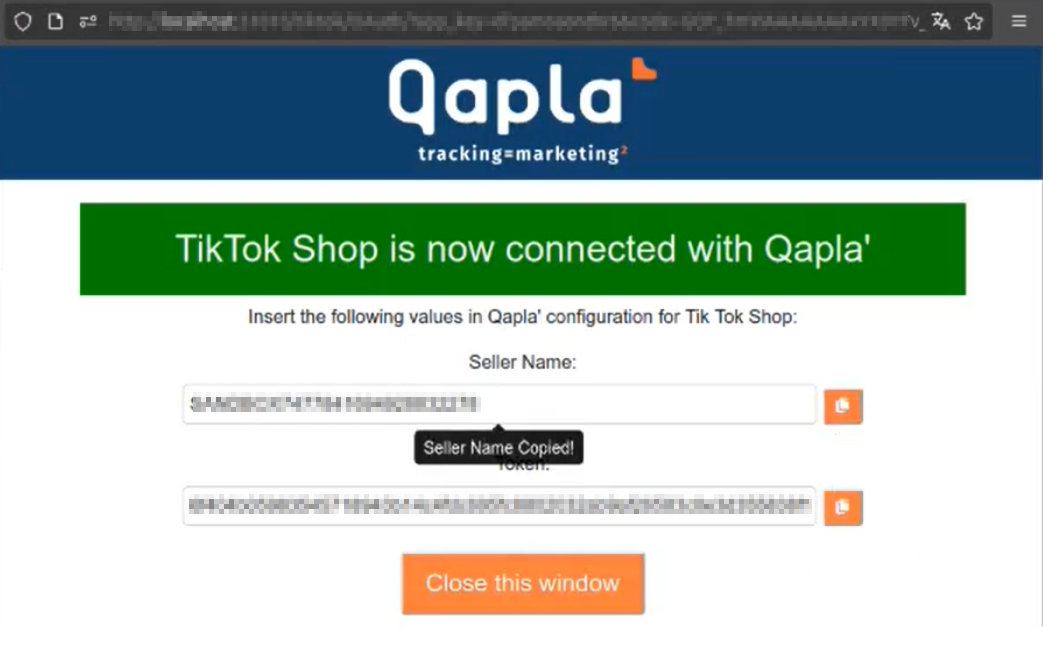
Once authorization is complete, you will automatically return to the Qapla’ configuration. Click on Update to save the changes.
4. Shop Selection
After clicking “Update”, the Shop ID field will appear. Select from the drop-down menu which specific Shop you wish to activate and connect to this Qapla’ channel.
5. Courier Mapping
Once the Shop is activated, courier mapping is mandatory. The system will show the list of couriers present on TikTok Shop: you must manually associate each entry with the corresponding courier activated on your Qapla’ account.
Do you need support?
If you need assistance, contact Qapla‘ Customer Care by writing to support@qapla.it