
Connecting Temu with Qapla’
To correctly connect and configure the Temu marketplace on Qapla’, follow the steps below.
NOTE: If the Marketplace module is not included in your plan, purchase it from the store or add it to your account.
1. Marketplace Selection
Log in to your Qapla’ account and go to Channels > [Channel Name] > Marketplace.
Choose Temu and click on “Select” at the bottom.
2. Authorization
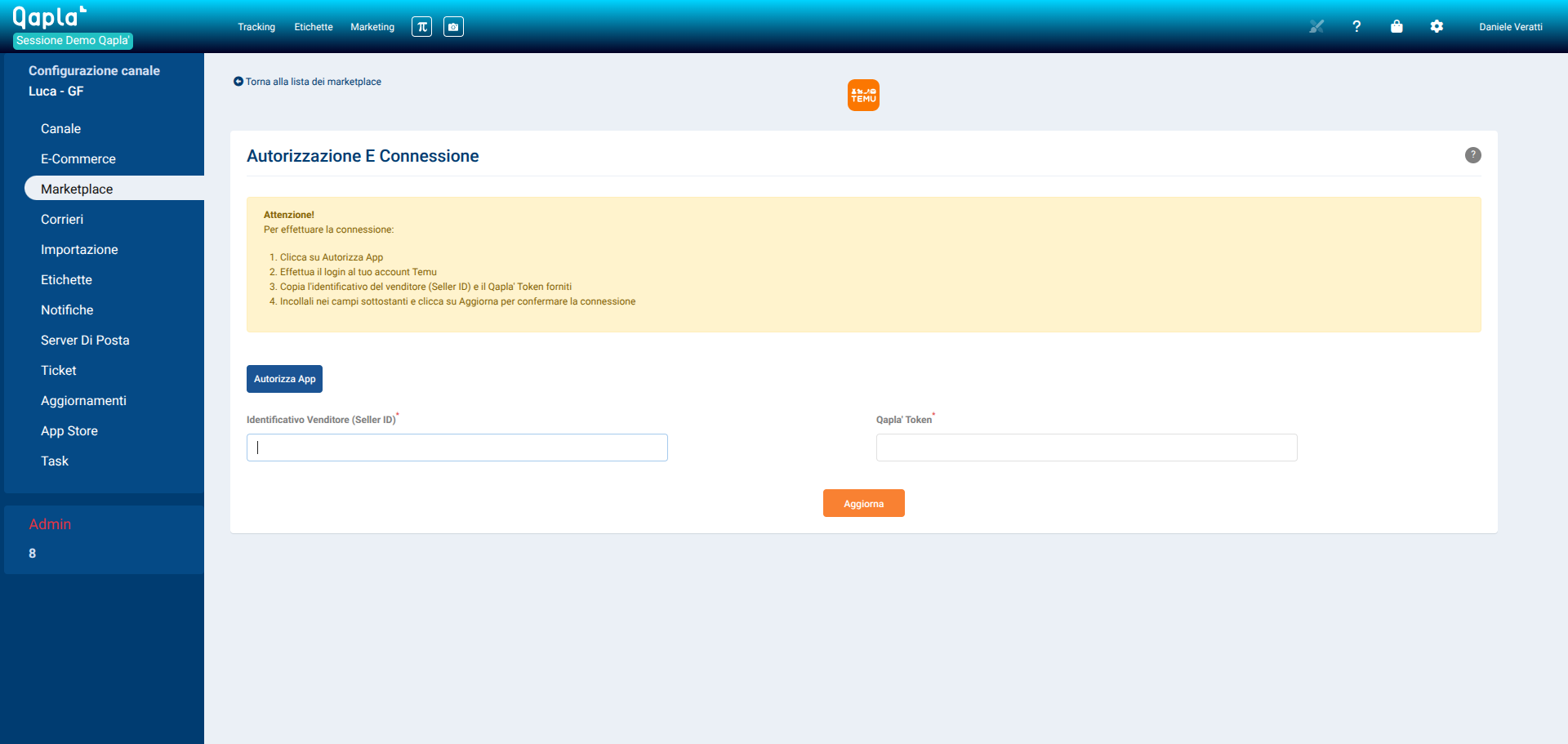
To allow Qapla’ to communicate with your store, you must authorize the application:
- Click on “Authorize App”
- Log in to your Temu account
- Copy the Seller ID and the Qapla’ Token provided
- Paste them into the fields below and click Update to confirm the connection
Click on “Update” to save.
3. Configuration
Fill in the marketplace settings:
- Enable automatic order import: Check this box to enable the automatic import of orders from Temu to Qapla’.
- Automatically update orders with tracking info: Check this box to send shipping information (tracking number and courier) to the marketplace once the order is managed and processed on Qapla’.
- Import “pre-sale” orders: Enables the import of orders in “pre-sale” status—those not yet ready for shipment because the items are being restocked. The system identifies these orders by the “pre-sale” string found in both the order status and within the individual products.
- Import Weight: Enable this option if you wish to import the weight of the items directly from the order.
- Import Images: Enable this option to import the product images included in the order.
- Region: select an option from the menu
- Warehouse Identifier for Order Update: select an option from the menu
- Country: select an option from the menu
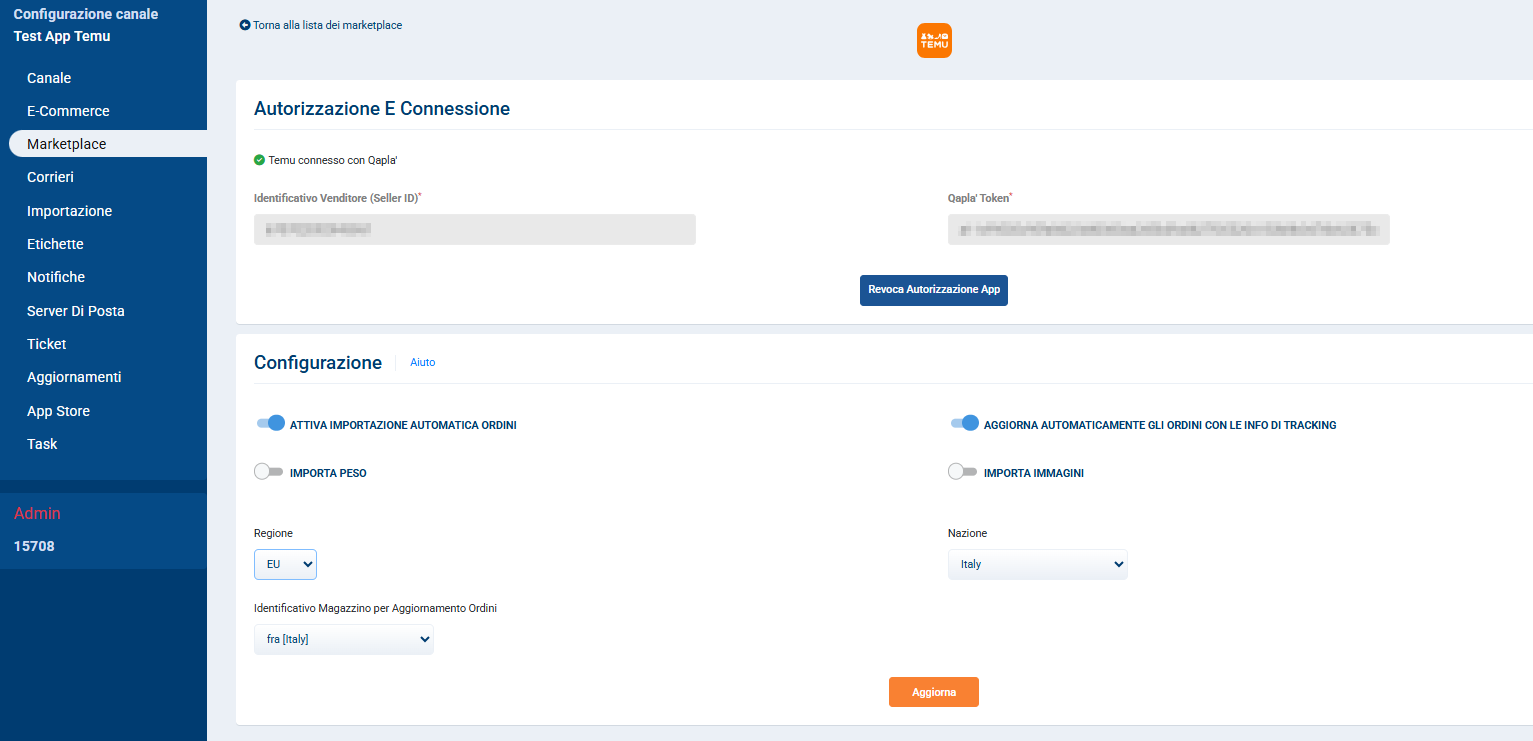
Click on “Update” to save.
Need support?
If you need assistance, contact Qapla’ Customer Care by writing to support@qapla.it