
Connect WooCommerce with Qapla’
To allow Qapla’ to communicate with your WooCommerce, follow the steps below.
1. Create a REST API key (Enable the APIs)
From the WordPress admin panel, click: WooCommerce / Settings.

Click Advanced and then REST API.

Click «Add Key».
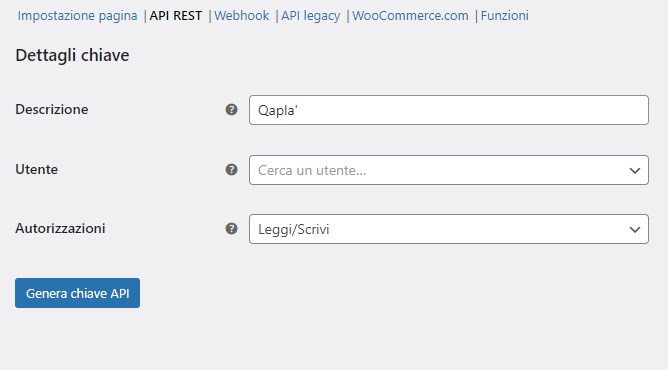
2. Generate a key
Enter “Qapla’” in the Description field.
IMPORTANT: In the User field, select a user who has site administrator permissions.
Set «Permession» to «Read / Write».

3. Enter the data in Qapla’
The WooCommerce-side configuration is complete.
Go to Settings > Channels > [Channel Name] > Configure > E-Commerce, select the platform, and paste the key previously generated in WooCommerce.

After entering it, click “Save and run test.”
4. Enable order import
To enable order import go to: Settings > Channels > [Channel Name] > Configure > Imports > Orders
Select the desired import mode:
- Automatic: Qapla’ will query your platform every hour (on the hour, e.g., 9:00, 10:00, 11:00, etc.) to import new orders and update existing ones.
- Manual: you can start the import at any time from the Labels section by selecting WooCommerce and clicking Manual import.
Excluded statuses from import.
You can exclude specific order statuses from import (in addition to the ones excluded by default), tailoring the flow to your operational needs.
Custom payment statuses for Cash on Delivery (COD)
Some CMS platforms allow you to customize payment statuses beyond the system’s standard ones.
If you have configured custom payment statuses to identify Cash on Delivery (COD) orders, it is essential to notify Qapla’ Customer Care to ensure the correct management of order import.
If you only use standard statuses, no action is required.
Email support@qapla.it listing the exact wording of the custom payment statuses used for COD. Once Qapla’ Customer Care confirms the setup, orders with these payment statuses will be automatically recognized as COD orders.
Advanced Settings
Within “Imports > Orders” you can enable the following options:
- Import product images
- Import weight
- Do not import internal data in product notes: prevents importing notes for products whose name starts with the “_” character, which are generally internal platform data.
- Customs code and Country of origin: allows importing these fields from the order’s products, if available in the CMS. Enter the exact name of the custom attribute to read in the dedicated field.
Set default weight
Define a default weight to apply to imported orders.
Set default number of parcels
Define a default number of parcels for each imported order.
5. Update the order on WooCommerce
To enable automatic updates to WooCommerce go to: Settings > Channels > [Channel Name] > Configure > Updates > E-commerce
Enable the available update options:
- Never
- When the shipment has departed
- When the shipment has been picked up by the carrier
- When the shipment is delivered
- Add an order note with the Tracking Number
Not working?
Qapla’ uses the official WooCommerce APIs (Web Services).
If it doesn’t work, we recommend asking the administrator who manages your WooCommerce site to perform a check.
Troubleshooting
| Error | Description | Solution |
|---|---|---|
| 401 Unauthorized | Qapla’ is not authorized to access | The provided keys are incorrect or were not authorized by following the procedure above. |
| 403 Forbidden | The server blocks Qapla’s access | Check that the site doesn’t have active security strategies (firewall) and make sure Qapla’s IPs are allowed. To request the full and updated list of IPs, contact our support at support@qapla.it. |
| 404 Not Found | The URL or endpoint being accessed does not exist | Verify the site URL is correct and confirm the site is actually a WooCommerce. |
| 500 Internal Server Error | Internal server error on the site | Check the cause on your server. |
| Bad HTTP response | The site is unreachable | The site URL is incorrect, offline, or no longer exists. |
| 301 Moved Permanently | The site URL redirects to another | Enter the correct site URL. |
| 302 Found | The site URL redirects to another | Enter the correct site URL. |
| Could not resolve host: www.xxx.xx | The URL does not exist | Enter the correct site URL. |
| OpenSSL SSL_connect: Connection reset by peer in connection to www.xxx.xx:443 | Issues with the site certificate | Check the site’s HTTPS certificate. |
In general, connections to servers respond with HTTP error codes.
