
Connect eBay with Qapla’
1. Select the Marketplace
Log in to your Qapla’ account and go to Settings > Channels > [Channel Name] > Marketplace.
Choose eBay and click «Select» at the bottom.
2. Authorization on eBay
Next, click «Request authorization from eBay» to allow the connection between the marketplace and Qapla’.
You’ll be redirected to the eBay login page — sign in with your eBay credentials.
A page will open where you must click «I agree» to complete the authorization process.


3. Activate Import and Update
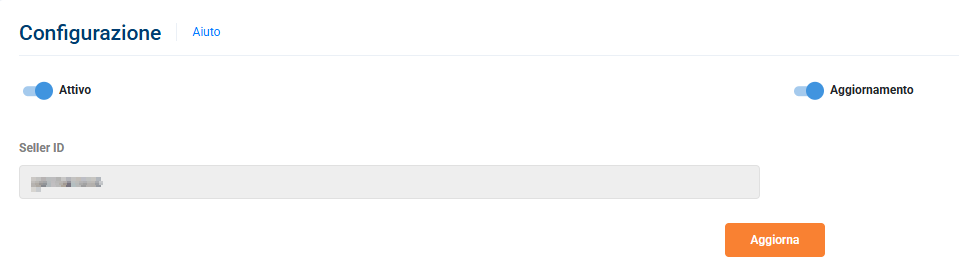
Once the authorization is complete, return to your Qapla’ panel to enable order import and automatic update options.
After enabling your preferred settings, click «Update».
It is also recommended to verify the connection through a manual import in Labels > Create > Manual Import.
Note:
The countries supported by this integration are: AE, AT, AU, BE, BG, BH, BR, CA, CH, CL, CY, CZ, DE, DK, EE, ES, FI, FR, GB, GR, GT, HK, HR, HU, IC, IE, IL, IS, JP, KG, KR, KZ, LU, LV, ME, MT, MZ, NL, NO, NZ, PE, PL, PR, PT, RO, RS, RU, SE, SI, SK, TH, TR, US.
Connection Issues?
If you received an error message related to the eBay connection, or if you experience issues importing or updating orders, follow these steps:
Go to Settings > Channels > [Channel Name] > Marketplace > eBay.
Uncheck the «Activate» button and click «Update».
Refresh the page and re-enter the marketplace configuration section.
Repeat the connection and authorization process following the steps above.
Once the process is complete, wait a few minutes for the connection to be established, then perform a manual import or update test.
Need help?If you need assistance, contact Qapla’s Customer Care at support@qapla.it